![iPost-GRADIENT-1.png]](https://www.ipost.com/hs-fs/hubfs/iPost-GRADIENT-1.png?width=100&height=43&name=iPost-GRADIENT-1.png)
Three tools work together here:
- Domain Prioritization: speeds up or slows down delivery to specific domains.
- Default Suppression Lists: automatically exclude certain contacts from every send.
- Role Address Suppression: filters out generic, non-person mailboxes like 'admin@' or 'sales@'.
Default Audience for Sending
You can choose an email list or sendable data table — such as an internal seed list — to automatically include in the audience of every process automation.
Domain Prioritization
You can tell the system to treat certain recipient domains differently by placing them into one of three lists: Priority, Limited, or Restricted. This is useful when you know a particular domain is especially important to your business, or when a domain has a history of filtering or blocking your mail.
Priority Domains
Domains added here are delivered to first, ahead of every other message in the send. Mail to these domains goes out as fast as possible, with larger batches of messages pushed through each connection.
Even a Priority domain can be limited or blocked if that domain's administrators require it. If a domain also appears in the Limited or Restricted list, it is automatically removed from Priority — a domain can only belong to one of the three lists at a time.
Limited Domains
Domains added here are sent in smaller batches at randomized intervals, and may be delivered behind domains that aren't on any list. Use this for domains that need a gentler, slower delivery pace — for example, ones that have flagged volume issues in the past.
If a domain also appears in the Restricted list, it's automatically removed from the Limited list.
Restricted Domains
Domains added here are blocked from delivery entirely. Contacts with these domains are removed from the send as though they had opted out, though this doesn't formally add them to your opt-out list or count them against opt-out totals.
You can add more than one domain to any of these lists — just type a domain (like anywhere.com) and press Enter to add another.
Default Suppression Lists and Data Tables
Rather than manually excluding certain contacts from every campaign, you can set default suppression lists and/or data tables that automatically apply to every email you send. This is one of the easiest ways to keep unwanted or risky addresses out of your sends without extra effort each time.
Suppression for Sending
You can designate default lists and/or data tables to be used as suppressions on every email send. Both Email Suppression and Mobile Suppression can be set (Mobile options only appear if Mobile Sending is enabled on your account).
To set a default suppression list or data table:
- Click the appropriate suppression box (Email or Mobile).
- Find the list(s) and/or data table(s) using the folder tree or the search box.
- Click the list(s) and/or data table(s) to add them to the suppression box.
- Click Select to confirm your default suppression choices.
Only data tables configured as “Sendable” can be selected as a suppression source
Role Address Suppressions
Role addresses are generic mailboxes tied to a function or team rather than a person — things like support@, sales@, or admin@. Because these inboxes are often monitored by multiple people (or no one), sending marketing email to them can hurt engagement metrics and deliverability. For that reason, most role addresses are suppressed from sends by default.
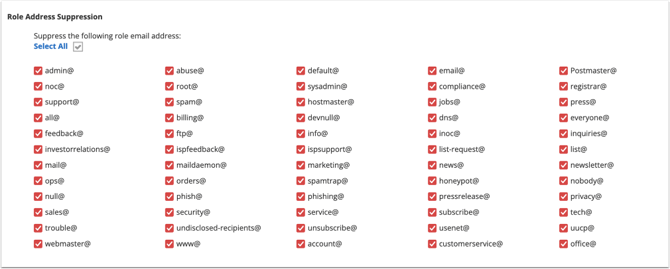
If you want a specific role address to be able to receive your mailings, simply deselect the checkbox next to it. Everything left checked stays suppressed.