![iPost-GRADIENT-1.png]](https://www.ipost.com/hs-fs/hubfs/iPost-GRADIENT-1.png?width=100&height=43&name=iPost-GRADIENT-1.png)
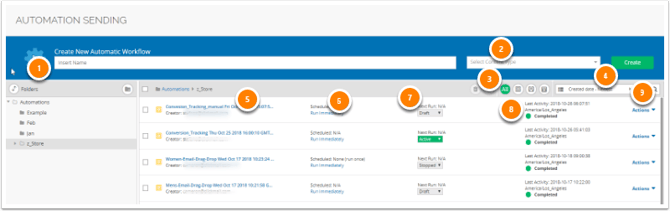 From the Automation manager, you can create and edit automations.
-
Create New Automation Workflow: enter the name of the automation.
- Select Content Type: pick the type of automation, either Process or Journey, from the drop down menu.
- Quick Filter: toggle manager view to see all automations, only Process automations, or only Journey automations.
- Filter Options: sort the automations in the manager by Name, Created Date, Scheduled Time, Type or search for automations by Name or ID.
- Name of the automation and the user who created it.
- Scheduled Field:
- For Process automations, the recurrence schedule will be populated.
- For Journey automations, the Entry Event for the automation will be populated.
- Next Run Field: displays when the automation is scheduled to run next.
- When an automation is scheduled, either as a one-time run or a recurring schedule, the date and time will be displayed.
- If an automation is Run Immediately, no schedule is displayed. Instead, "N/A" is returned.
- Draft: An automation that has been created but not activated. Automations that were Run Immediately will also have a status of Draft even though it may have completed.
- Active: An automation must be manually set to Active once a schedule has been configured in order for it to run.
- Paused: Applies to automations with recurring schedules. When an automation is paused, no future occurrence of the schedule will run until the status is changed to Active.
- Stop: The process automation is considered stopped and will not run any of the next scheduled runs until the status is changed to Active. For all one-time run automations, the status will be changed to Stop upon run completion.
- Automation Status for the Last Activity: displays the date and time of the last run, along with the status. For Journey Automations, you will also see a count of contacts that are In Journey, Exited, or Ejected. Below are the available status values.
- Completed: The automation completed successfully
- Error: There was an error with the automation. The error details can be found in the Run Log for the automation.
- Stopped: The automation was stopped while it was running.
- Running: The automation is currently running and the status will update upon completion.
- None: The automation is currently scheduled and has not yet run.
- Actions: the drop down menu provides actions that can be taken on a specific automation.
- Edit Process/Journey Automation: edit the automation.
- Run Immediately: run the automation immediately. This is only available on Process Automations.
- Schedule: navigates to the Schedule page of a Process Automation to either schedule or edit the schedule for the automation.
- Duplicate: duplicate the automation.
- View Activity Log: navigates to the automation's Activity Log page.
- Move: move the automation into different folders.
- Delete: delete the automation.
- Eject All Contacts: eject all contacts from a Journey automation.