![iPost-GRADIENT-1.png]](https://www.ipost.com/hs-fs/hubfs/iPost-GRADIENT-1.png?width=100&height=43&name=iPost-GRADIENT-1.png)
Undeliverable Addresses
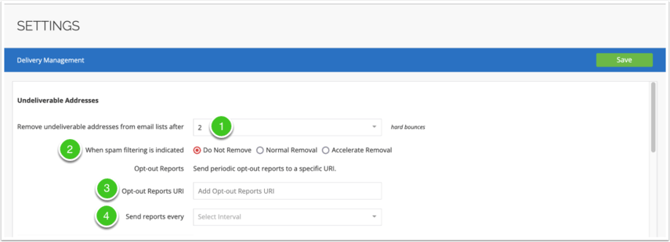
1. Opt out undeliverable addresses after a specified number of hard bounces
This setting determines how many hard bounces can occur before an address is permanently opted out of your list. By default, iPost sets this to two hard bounces.
For more information, see the Bounce documentation.
2. Handling bounces attributed to spam filtering
This option determines how to handle bounces categorized as spam filtering. You can keep these addresses on your list, process them through the standard bounce-out process, or remove them immediately.
For more information, see the Bounce Codes article.
3. Automated Opt Out Reports
Specify a URL (http, https, or mailto) used to receive periodic updates to your opt-out list. Each report is a text file containing one email address per line.
- For 'http' and 'https' URLs, iPost sends the report via POST.
- For 'mailto' URLs, the addresses are included in the email body rather than sent as an attachment.
4. Opt out reporting interval
Select the frequency in which you would like to receive the Opt-Out Report.
Specify Priorities and Restrictions for Recipient Domains
Domain Priority
You can set domain priority by entering the domain in this field (i.e. anywhere.com). Delivery to these domains begins before any other messages are sent. The messages to these addresses are sent as rapidly as possible. Attempts are made to deliver larger numbers of messages on each SMTP connection.
iPost reserves the right to limit or block delivery (even to domains in the high priority set) when required to do so by the administrators of the domain. Domains are automatically removed from the high priority set whenever they appear in the limited or restricted sets below.
Multiple domains may be entered by selecting enter on your keyboard after each entry.
Limited Domains
Domains listed within the Limited Domains field are sent in smaller groups and at randomized intervals. They may be prioritized behind messages to domains that do not appear in these sets, or otherwise delivered at a reduced rate as deemed necessary by iPost.
Domains that appear in the restricted set below are automatically removed from the limited set.
Restricted Domains
Contact addresses with listed domains are removed from the delivery list as if they were on the opt-out list. Otherwise, they are not considered opt-outs and do not match the opt-out lists. However, delivery to these domains is blocked.
Default Values for Sending E-mails
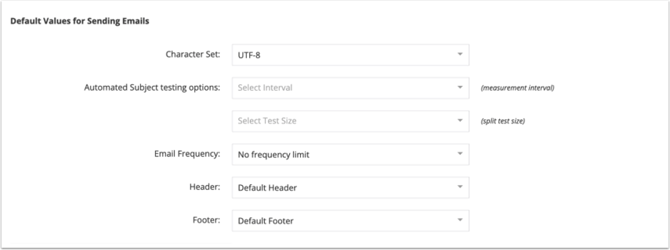
iPost allows you to set default email properties to save time and improve consistency. These settings can be modified when creating your email.
| Field | Description |
| Character Set | This option allows you to select the type of email encoding you would like to use. The encoding plays a major role in the way an email will be displayed, especially with respect to special characters in non-Latin languages. Language types:
|
| Automated Subject Testing Options | Measurement Interval This is the amount of time the system will wait before automatically sending the better performing version to the remainder of your contacts. The best version is determined by Response Rate, which is combined Open and Click performance. Split Test Size Select the percentage of your audience that you would like to send A/B subject line tests to. The system randomly selects which subscribers receive the test subject lines |
| Email Frequency | Allows you to suppress sending to the contacts who have received an email from you in the previous X number of days. |
| Header | Headers are inserted at the top of your email. Select the value to determine the default header information for your emails:
For more information on Headers, please see our Headers article. |
| Footer | Footers are inserted at the end of your email. Select the value to determine the default footer information for your emails:
For more information on Footers, see our articles on Footers and Snippets. |
Default Audience Settings
Default Audience for Sending
Choose an email list or sendable data table, such as an internal seed list, from your account to automatically include in the audience of every process automation.
Suppression For Sending
You can designate default Lists and/or Data Tables be used as audience suppressions for every email send. Both Email Suppression List(s)/Data Table(s) and Mobile Suppression List(s)/Data Table(s) can be selected as default options. The Mobile options will only appear if Mobile Sending is enabled on your client.
To select a list and/or data table for suppression:
- Click on the appropriate suppression box.
- Locate the List(s) and/or Data Table(s) in the folder tree or by using the search box. Please note, only Data Tables configured as "Sendable" can be selected.
- Click on the List(s) and/or Data Table(s) to add them to the suppression box.
- Click Select to confirm your default suppression List(s) and/or Data Table(s).
Advanced Options
The Advanced Options setting is used to set a default throttle for all email sends. The default is to send all messages as soon as possible after the email starts sending.
The minimum throttle setting is 200 messages per hour.
To set a throttle for all sends:
- Toggle on the throttle option ("Send no more than..." selection).
- Enter the number of messages to be sent and the number of hours those messages should be sent over (e.g., 15,000 messages every 1 hour).
- Click Save.
For more information on throttling messages, please read our Deliverability and Warm-Up article or contact your Customer Success Manager.
Notification Journeys
Each account is configured with Notification Journeys for Opt-In, Opt-Out, and Email Change notifications. By default, these journeys are disabled. More information on Notification Journeys can be found here.
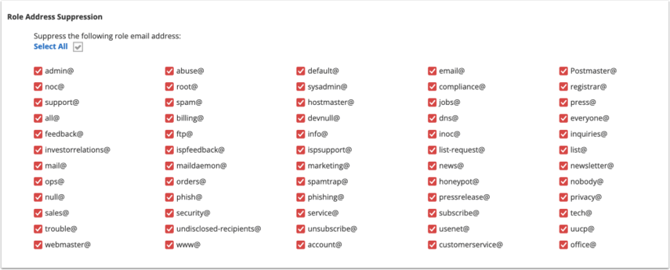
Role Address Suppression
Role Addresses are generic email addresses that are normally assigned to a mailing list or position rather than an individual contact. iPost suppresses most Role Addresses from email sends by default. This section allows you to decide if you want to suppress some or all of the role addresses.
To allow a Role Address to be included in your mailing, deselect the checkbox next to the left-side role email address.