![iPost-GRADIENT-1.png]](https://www.ipost.com/hs-fs/hubfs/iPost-GRADIENT-1.png?width=100&height=43&name=iPost-GRADIENT-1.png)
What should my Keyword be?
Your choice for a Keyword should be as unique as your product and your brand. Remember, you want your customers to recognize and remember it! Keep in mind that this is mobile messaging, so Keywords should be short, simple, and memorable. Avoid the use of any special characters and test for autocorrect.
Reserved Keywords
The following Keywords are reserved by the Cellular Telephone Industries Association (CTIA).
- HELP
- STOP
- UNSUBSCRIBE
- END
These keywords do not need to be created and already have autoresponders associated with them.
How to Create my Keyword
To create a Keyword:
- Click on Keyword in the Mobile menu.
- Enter your keyword in Create New Keyword field.
- Select the short code or phone number associated with that keyword in the Select Code field.
- Click Create.
Once created, the keyword will appear in the Keyword Manager, and it will also be available as an entry event for a SMS journey.
Keywords may only contain alphanumeric characters and cannot contain spaces.
Keyword Manager
The Keyword Manager provides a list of all the keywords created in your account and the short code or phone number they are associated with. From the manager, you can delete a keyword or begin a Mobile Journey using a specific keyword.
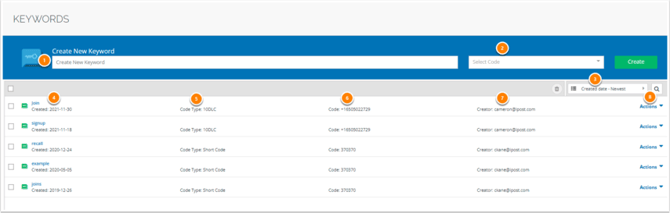
- Create New Keyword: enter the Keyword you are creating
- Select Code: provides a list of short codes and phone numbers provisioned for your account
- Filter Options: sort the keywords in the manager; filter by name, date, or type, or search for automations.
- The Keyword and the date it was created
- Code Type: identifies if the keyword is being used for a short code, 10DLC, or toll-free number
- Code: the short code or phone number associated with the keyword
- Creator: user who created the keyword
- Actions: provides a dropdown menu with the following options.
- Delete: delete the keyword Create Mobile Journey Automation: use the selected keyword as the entry event in a journey.