![iPost-GRADIENT-1.png]](https://www.ipost.com/hs-fs/hubfs/iPost-GRADIENT-1.png?width=100&height=43&name=iPost-GRADIENT-1.png)
Sending a SMS/MMS message
We recommend that when sending a single SMS/MMS, that users use the Mobile Content flow from the Preview page of the mobile content. To schedule your SMS/MMS:
- Click on the Name of the SMS/MMS content.
- Proceed to the Preview step.
- Click Schedule & Send.
- Configure the SMS/MMS activity.
- Click Next.
- Click Run Immediately or Schedule.
- If Scheduling the send, configure the send date and time.
- Next, click Save and update the automation's status to Active.
Once the SMS/MMS message starts sending, a report will generate and will be in the SMS Tickets option in Reports.
Configuring a SMS/MMS Activity
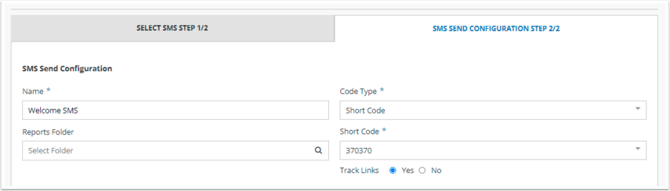
SMS/MMS Send Configuration
|
Option |
Description |
|---|---|
|
Name |
The name of the Mobile content. |
|
Reports Folder |
Select the folder that the report will be placed in once generated. |
|
Code Type |
Select the type of code that will be used for the send. Multiple code types can be provisioned for a client. Supported code types are Short Code, 10DLC, and Toll-Free Numbers. |
|
Code |
Select the Short Code, 10DLC, or Toll-Free Number that will be used for the send. |
|
Track Links |
If enabled, all links in the SMS/MMS will be tracked. |
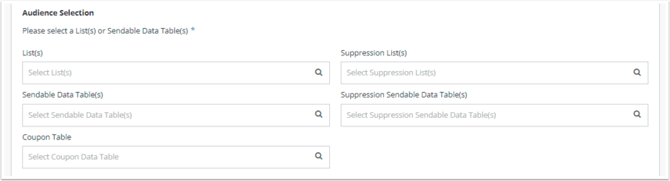
Audience Selection
|
Option |
Description |
|---|---|
|
Lists |
Select the list(s) that will be used as the audience for the send. |
|
Sendable Data Tables |
Select the data table(s) that will be used as the audience for the send. |
|
Coupon Table |
If using the iPost Coupon Code, select the Coupon data table for the send. |
|
Suppression List(s) |
Select any lists to be used as suppression for the send. Suppression is done by mobile phone number. |
|
Suppression Sendable Data Table(s) |
Select any data tables to be used as suppression for the send. Suppression is done by mobile phone number. The data table should be configured as sendable with the mobile configuration. |
Advanced Options

|
Option |
Description |
|---|---|
|
Deduplicate Audience by Mobile Phone |
If enabled, will remove duplicate Mobile Phone numbers from the audience at the time of send. |
|
Opt-out Override |
If enabled, the contact’s Mobile opt out status will be ignored, and the contact will be sent the SMS/MMS message. |