![iPost-GRADIENT-1.png]](https://www.ipost.com/hs-fs/hubfs/iPost-GRADIENT-1.png?width=100&height=43&name=iPost-GRADIENT-1.png)
User Profile
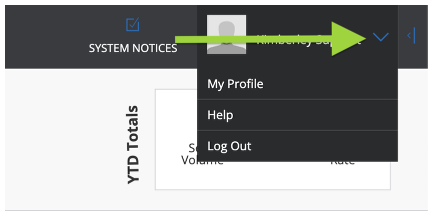
Your name is shown at the top right corner in the platform. Click the icon next to your name to manage your profile, search our Help Documentation, or log out of your account.
My Profile
This page allows you to edit your contact information, manage your password, and set your personal preferences.
General Settings Menu
The General Settings menu can be accessed by clicking the right-pointing arrow found to the right of your username. Use this menu to control your account settings such as default account and email settings, managing users, and creating subclients.
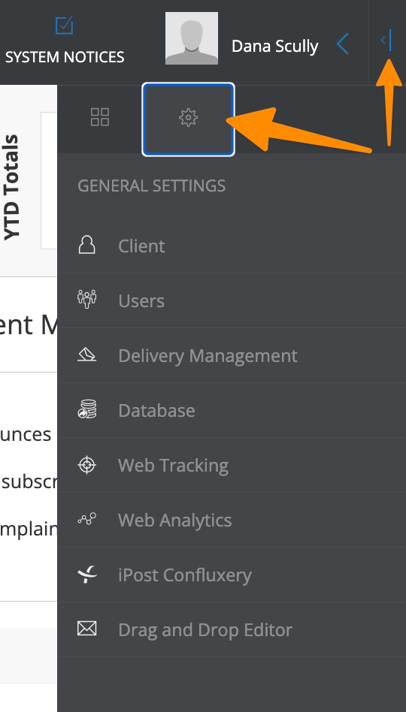
| Section | Description |
|---|---|
| Client | Manage account time setting and default values of emails. |
| Subclients | View and manage subclients. |
| Users | Manage users and their permissions. |
| Delivery Management | Set delivery settings, manage default values for sending emails, and create sender domains. |
| Database | View and edit database fields. |
| Web Tracking | Set up conversion tracking to track website activity. |
| Web Analytics | Create and manage web analytics tracking parameters. |
|
iPost Confluxery |
Set up integrations between your iPost account and other data streams. |
| Drag and Drop Editor | Enable Auto Save and define default colors and fonts. |
Content Creation Menu
The Content Creation Menu is located on the left side of your screen. Use this menu to manage content, assets, automations, and reporting. If you wish to minimize this menu, click the four-line icon next to your Account Name.
| Section | Description |
|---|---|
| Dashboard | Gives you quick access to your performance trends, allowing you to gauge trends over time. |
| Create and manage emails, templates, headers & footers, snippets, and dynamic content. | |
| Mobile | Create and manage SMS content, snippets and keywords (only available to accounts configured to send SMS/MMS messages) |
| Assets Library | Upload images that you use in your emails. |
| Contacts | Create and manage lists, data tables, filters, SQL queries, topics, and categories. |
| Automation | Create and manage process and journey automations. |
| Reports | Track the performance of your emails. |
| Calendar | Provides a weekly or monthly view of all scheduled and past email sends. |